Turn Your Phone into a Webcam with 3 Software Tools 📱💻🎬
Our 3 Software to Use Your Phone as a Webcam

1. Cbran Cam - Mobile App
Download the app on your phone and connect as a professional webcam over WiFi or USB.

2. Cbran Cam Obs - OBS Plugin
Direct integration with OBS Studio for streaming and professional content creation.

3. Viewer for Windows
Windows program that lets you view and manage your cameras on your computer.
Download Cbran Cam

cBran Cam (Android)
Turn your phone into a wireless HD camera. Free on Google Play, no account needed.
Android app v1.3.1
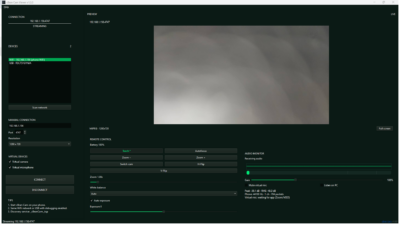
cBran Cam Viewer (Windows)
Preview and use your phone as a webcam on Windows.
Viewer v1.3.3 for Windows
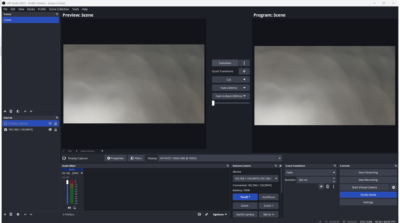
cBran Cam OBS (Plugin)
Add your phone as a native source in OBS Studio.
OBS plugin v1.3.5 for Windows
Current versions: Android 1.3.1 · Viewer 1.3.3 · OBS plugin 1.3.5. Android + Windows. Same Wi-Fi network or USB.
Download Our Camera Software
Use Cbran Cam seamlessly with video conferencing software like Zoom, Discord, and MS Teams, or integrate it into production tools like OBS Studio.
HD video with minimal latency
Works reliably over Wi-Fi and USB to deliver high-definition video with low delay. No microphone? Built-in audio capture has you covered.

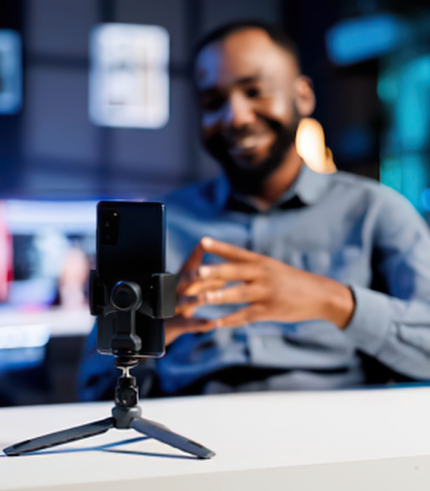

Cbran Cam
Product 1 — cBran Cam (Android)
Turn your phone into a wireless HD camera.
Stream high-definition video and audio to your PC over Wi‑Fi or USB with low latency. Ideal for calls, content creation, and multi-camera setups.
Product 2 — cBran Cam Viewer (Desktop)
Preview and use your phone as a webcam on Windows.
Connect over Wi‑Fi or USB, monitor the live feed, and send video to conferencing apps and virtual camera workflows — without opening OBS.
Product 3 — cBran Cam OBS (Plugin)
Add your phone as a native source in OBS Studio.
Free OBS plugin for streaming, recording, and production. Discover devices on your network, switch cameras, and control the stream from your PC.
Frequently Asked Questions
Install the cBran Cam app on your phone, connect it to your PC over Wi‑Fi or USB, then use the cBran Cam Viewer or the free OBS Studio plugin to receive the video and audio stream.
cBran Cam turns your Android phone into an HD camera for your computer. Use it for video calls, streaming, recording, and live production.
- cBran Cam (Mobile App) — camera app on your phone
- cBran Cam Viewer — desktop app for webcam use and preview
- cBran Cam OBS — free plugin to add your camera and microphone on your phone as a source in OBS Studio
Yes. Use the Viewer (virtual camera) or OBS with a virtual camera output so conferencing apps can see your phone feed.
No. Use the Viewer for calls and everyday webcam use. Use the OBS plugin when you stream, record, or build more advanced scenes.
Wi‑Fi is convenient on the same network. USB is more stable when Wi‑Fi is weak; with USB debugging enabled, forward the connection and connect to 127.0.0.1.
Yes. Built‑in microphone capture is included, so you don’t need a separate mic for most setups.
Designed for HD video with low delay over Wi‑Fi or USB, suitable for calls and live production.
Yes. The cBran Cam OBS plugin is free with no license required. The Android app is free too — no account or license needed. The Viewer uses your cBran license.
Open the app and tap Start Server — no account or license needed. The status should show Ready/Streaming before OBS or the Viewer can connect.
For Wi‑Fi, yes — same local network. For USB, they connect through the cable (no shared Wi‑Fi required).
Yes in OBS: add multiple cBran Cam sources (one per phone/device). Each phone runs its own cBran Cam app.